Mecha Duelist
Character concept art · HD texture
Armor plates, coat tails and an engraved sword. View input image

Start with a photo, sketch, or character illustration. Explore the shape from every angle and download the textured 3D model.
Choose one JPG, PNG, or WebP up to 2.9 MB. Prepare your input and see the credit cost in Studio.
Generation uses credits.Open a model to compare the original AI illustration or product image with its 3D result. Drag to see how the hidden sides turned out.
Character concept art · HD texture
Armor plates, coat tails and an engraved sword. View input image
Pen and ink sketch · HD texture
A raised handle and two tuning knobs. View input image
Product-style image · HD texture
A glazed surface and a curled tail. View input image
Watercolor illustration · HD texture
A spotted roof over a small round window. View input image
Product-style image · HD texture
Wood grain, chunky wheels and an open seat. View input image
Game prop concept · HD texture
Worn paint, lid ribs and paired latches. View input image
Flat-color illustration · Standard texture
A peaked cap and a red shoulder bag. View input image
Explore character silhouettes and decorative objects from your own reference images. Review small details and hidden surfaces before further editing.
Develop creatures and props for imagined worlds. Before 3D printing, check mesh integrity, wall thickness, scale, and supports in your own tools.
Explore props and visual prototypes for a game or scene. Check polygon count, topology, and materials before using a model in production.
Choose a photo, sketch, or illustration. A complete object and a clean background work best.
Review the credit cost before submitting. When a supported model is ready, rotate and zoom to inspect its shape from every angle.
Download the available output and save it locally. Result links are temporary; your recent tasks remain available in the studio.
 CERAMIC FOX · HD TEXTURE
Rotate, zoom, and explore beyond the original image.
Check the returned file format before importing into your 3D editor. GLB results can be previewed in the browser; other outputs may be download-only.
Return to your account to check task status and available downloads. Save completed models locally while their download links are available.
Start with a reference image, describe an object, or supply several views of the same subject. Prepare your input and review the credit cost without signing in. Explore the model gallery to compare inputs and results before generating.
Use a photo, sketch, or illustration to guide the shape and appearance of a single object. Upload a JPG, PNG, or WebP image up to 2.9 MB.
Upload an image for 3D generation ↗Describe an object, its proportions, and materials when you do not have a reference image. Begin with one clear subject and refine the description between attempts.
Explore Text to 3D →Start with a front view of one object. Left, back, and right views are optional. Keep the subject and appearance consistent.
Explore Multi-view to 3D →A 2D image shows only one view. AI estimates the depth and surfaces it cannot see, so the result is a starting point to inspect and refine—not an exact scan.
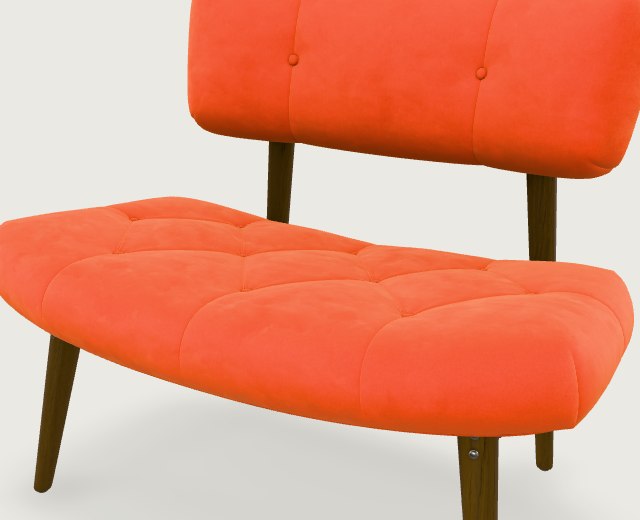
Step back until the feet and the top of the backrest are both inside the frame.
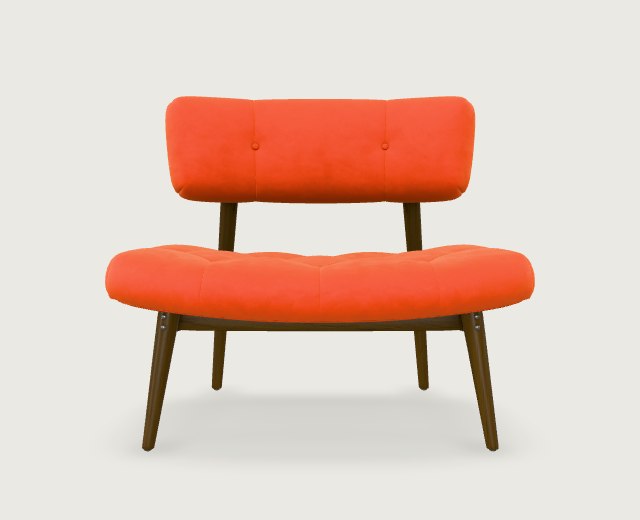
A front view shows the chair’s width. From here, the depth of the cushion is hard to judge.
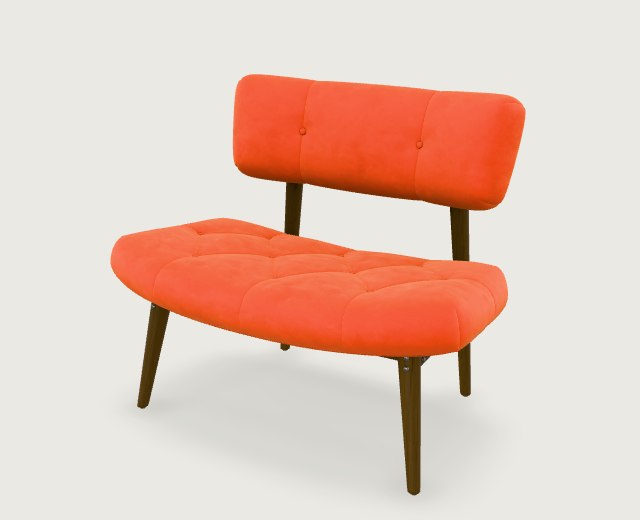
For one upload, try this angle. It shows the seat depth, backrest and legs in a single image.
Compare reference images for 3D modelingCompare model quality and credit costs
Monthly credits. Clear generation costs.
Pick the allowance that fits your workflow.
Checking payment availability. All prices in USD.
For occasional projects
20 standard image-to-3D generations
For a regular creative workflow
45 standard image-to-3D generations
For frequent individual creators
100 standard image-to-3D generations
No subscription required.
Buy once. Use credits when you need them.
For a small project or a first try
10 standard image-to-3D generations
For a larger project or extra iterations
30 standard image-to-3D generations
One-time packs work with or without a subscription. Purchased credits remain available after cancellation. Model counts assume 6 credits per standard image generation. Other modes and quality settings use different amounts.
Standard texture: Image or Multi-view 6 credits · Text 4 credits. HD texture adds 2 credits; detailed geometry adds another 4 credits.
Subscription credits reset each billing month and do not roll over. Purchased credits never expire. Previewing and downloading an existing result use no additional generation credits. Creating an account does not start a subscription or charge you.
Yes. Choose a mode, prepare images or a text description, and review the credit cost in a browser workspace without signing in. Drafts stay in this browser for up to 24 hours. Generation requires available credits. Sign in to save eligible browser tasks and credits to an account.
It uses an image as a reference to generate a three-dimensional mesh. Unlike a flat image or a depth effect, a 3D model can be viewed from different angles. Surfaces hidden in the reference are estimated, so inspect the result before using it.
You can use a JPG, PNG, or WebP photo, sketch, or illustration of one object, up to 2.9 MB. A complete silhouette and clear material cues help communicate the intended shape.
You can begin with an image or a text description without manually building a mesh. Reviewing topology, repairing geometry, and preparing a model for a game or printer may still require 3D editing skills.
Image to 3D starts from one visual reference. Text to 3D starts from an object description. Multi-view starts with a front photo and accepts optional left, back, and right views.
Timing depends on the provider queue, input, and quality settings. The studio shows task status after submission. We have not yet established a measured completion-time range and do not promise a fixed generation time.
Start with a clear image of one complete object. Avoid cropped edges, heavy occlusion, and busy backgrounds.
Starter is $19/month for 120 credits; Creator is $39/month for 270 credits; Studio is $79/month for 600 credits. Standard Image or Multi-view to 3D uses 6 credits; standard Text to 3D uses 4 credits. HD texture adds 2 credits, and detailed geometry adds another 4. The cost will be shown before generation.
Yes. Our one-time packs offer 60 credits for $12 or 180 credits for $29. No subscription is required, and packs do not renew automatically.
Subscription credits reset at the start of each monthly billing cycle and do not roll over. Purchased one-time credits never expire, are kept separately, and remain available if you cancel a subscription. Credit validity does not mean model files are stored forever.
Previewing or downloading an existing result uses no additional generation credits. A new generation uses credits based on its mode and quality settings.
Available plans have a purchase button in the pricing section. Review your selection in Studio before continuing to Stripe.
Download GLB for materials and textures. For supported GLB results, choose Download STL to export the surface geometry in millimeters. Save your files locally because result links are temporary.
Yes. Each example pairs its AI-generated reference image with the textured 3D model generated from that image using Tripo H3.1. Open a case to compare the input and rotate the result.
Email support@easyto3d.com with your task ID and a description of the issue. Do not include passwords or API keys.
Printing requires suitable geometry, scale, and mesh checks. An export format alone does not guarantee a printable model.


